
Original archive text
The PhoneGap Desktop application provides a drag and drop interface for creating PhoneGap applications. It's an alternative to using the PhoneGap CLI built for those who prefer a visual user interface over a command line interface approach.
**NOTE:** The getting started steps vary based on the initial PhoneGap tool you install here in step 1. For the rest of the steps be sure to choose either the **Desktop** or **CLI** tab at the top accordingly.
Select your operating system to continue:
Mac OS X Installation
Download the latest Mac OS X Installer.
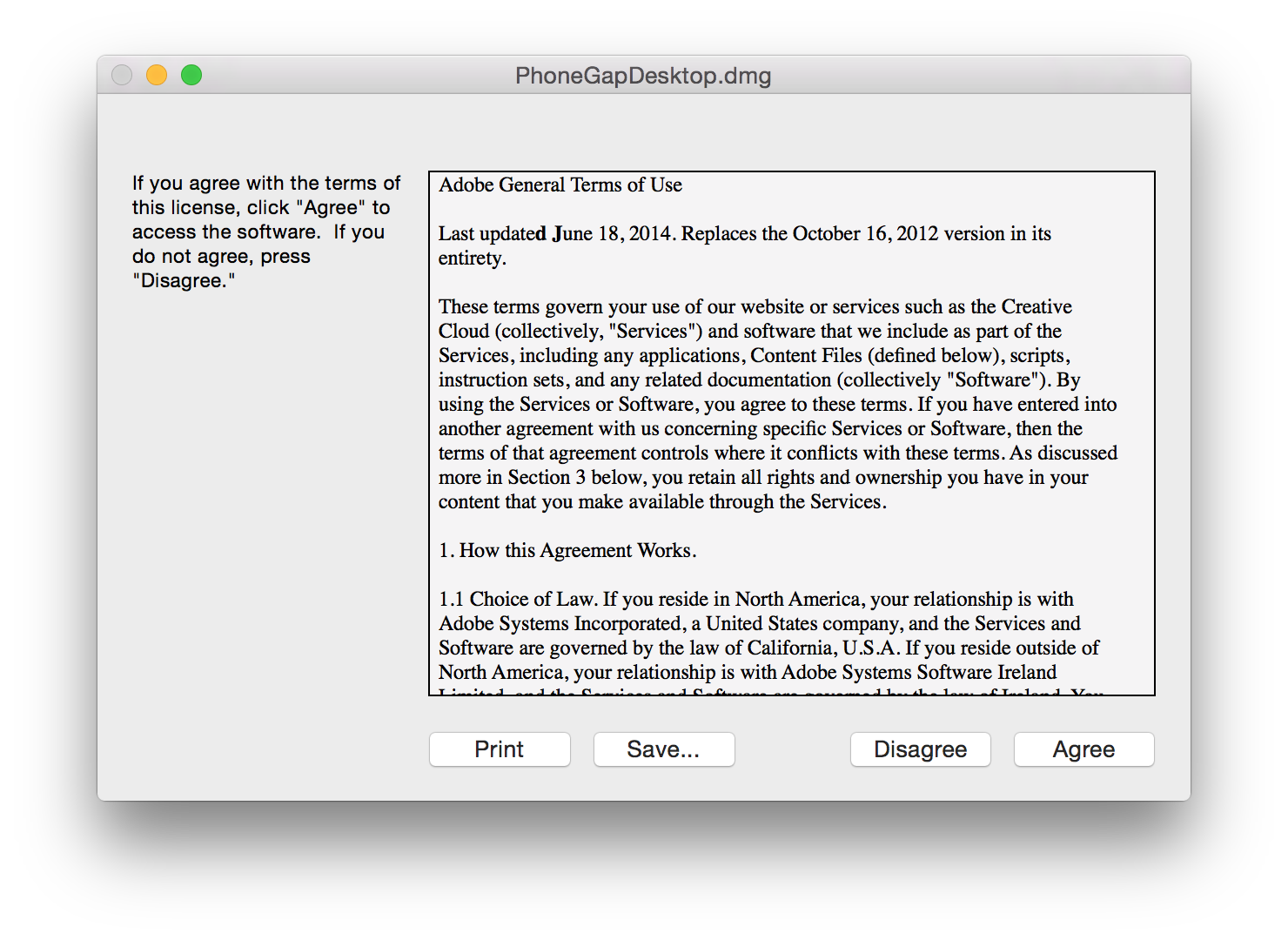
Double-click the downloaded file to run the installer. You will initially be prompted with a license agreement to accept:
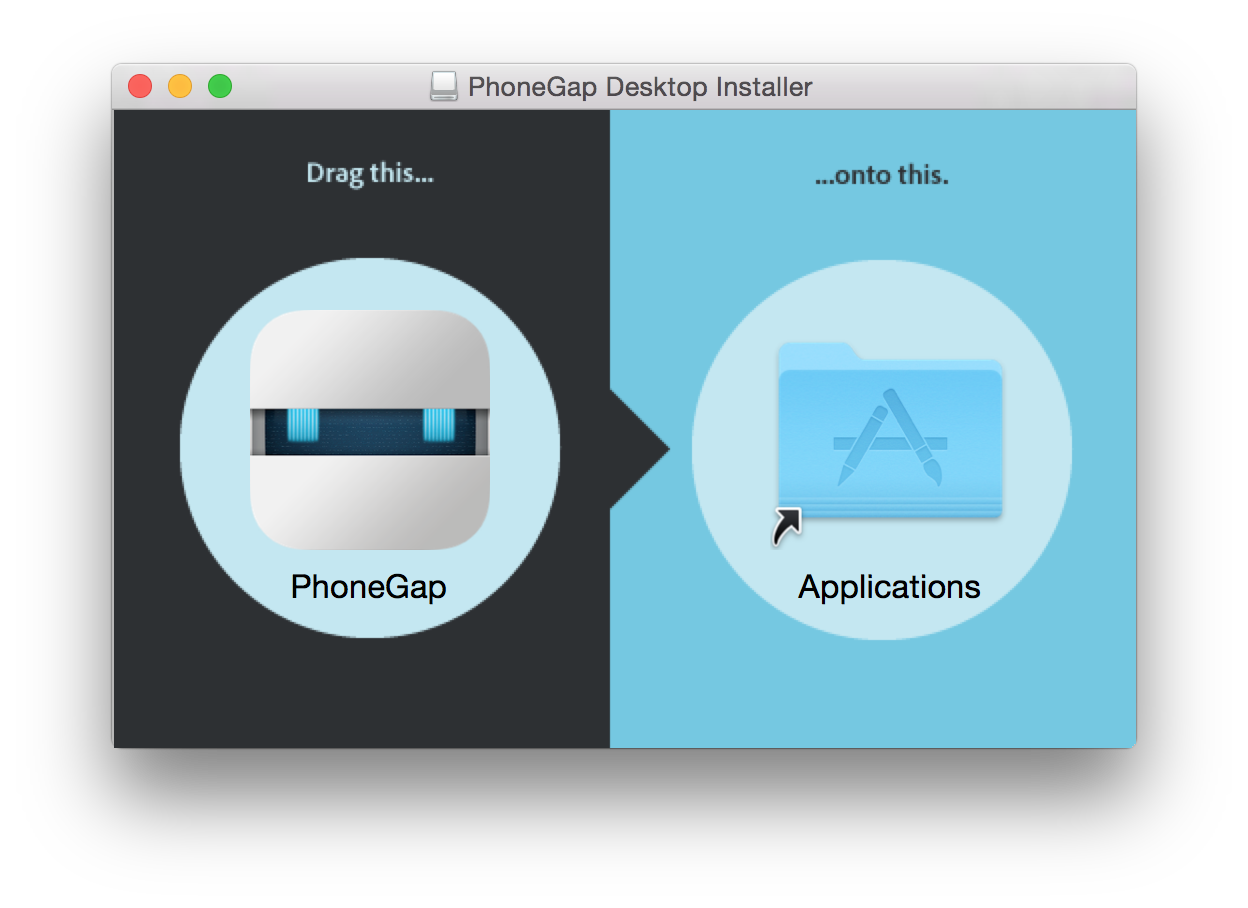
- Drag and drop the application into the Applications folder on your Mac as prompted:
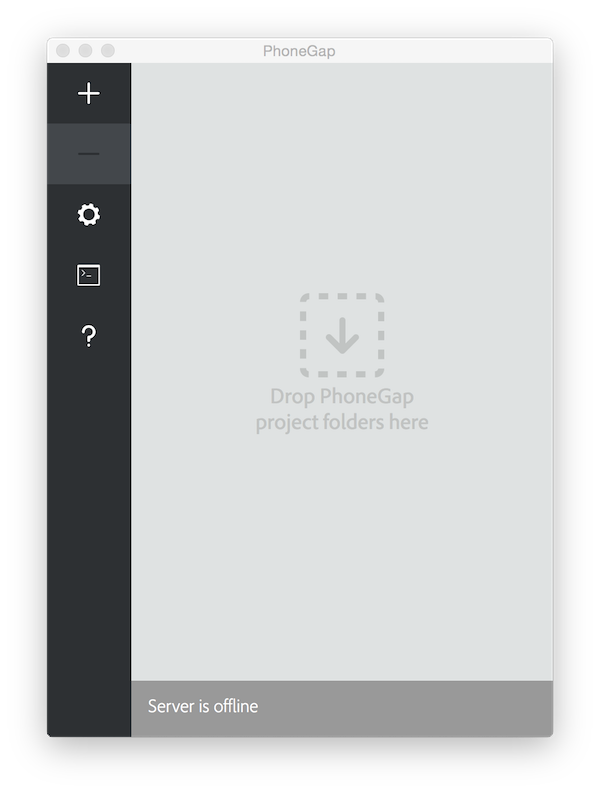
- Next simply open the application and proceed to Step 2 where you will install the PhoneGap Developer App to your mobile device for previewing the apps you build.
Windows Installation
- Download the latest Windows Installer.
**NOTE:** If you're unable to run the Windows Installer for some reason, there's also a zip file available that can be used to install PhoneGap Desktop manually. Download the [zip file for the latest release](https://github.com/phonegap/phonegap-app-desktop/releases) and follow the instructions in the README and INSTALL files within the downloaded zip.
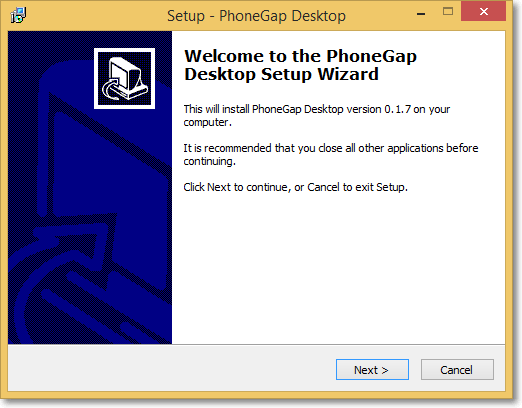
- Double click the downloaded file to run the installer. You will be prompted with the PhoneGap Desktop Setup Wizard:
- Accept the license agreement:
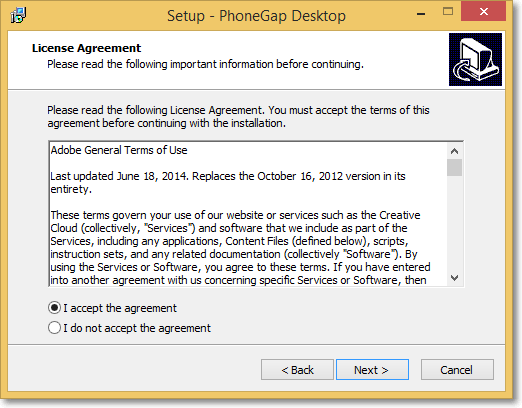
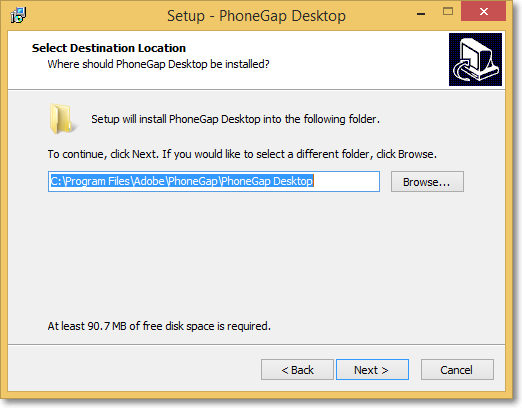
- Select the desired destination for the application and click Next:
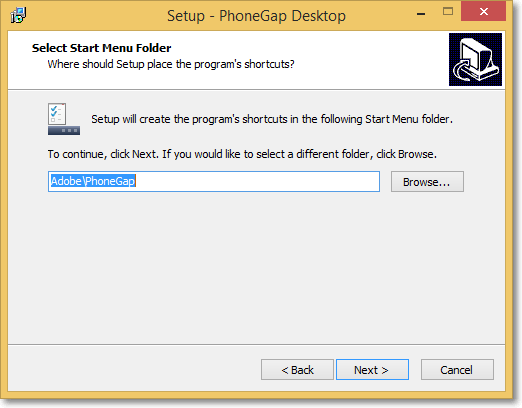
- Select the desired location for the shortcut and click Next:
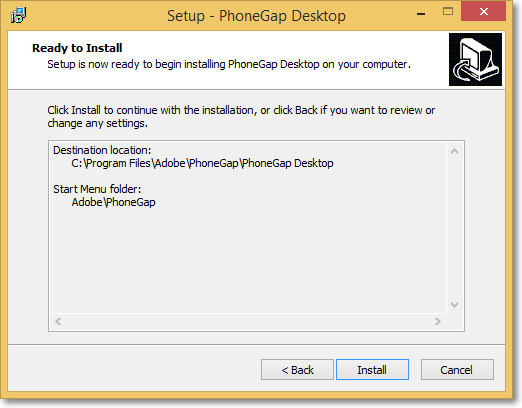
- Click Install to begin the installation:
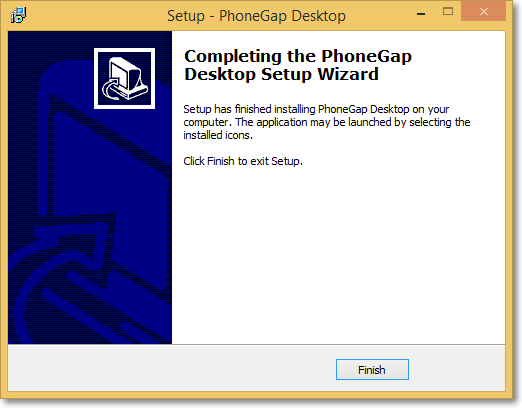
- Click Finish to close the Setup Wizard:
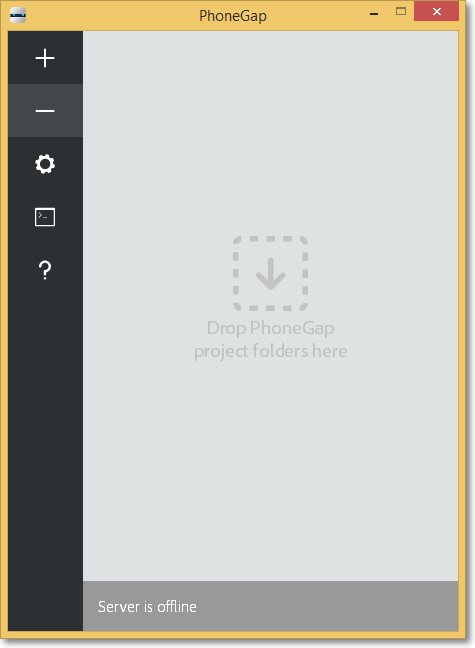
- Next simply open the application and proceed to next step below where you will install the PhoneGap Developer App to your mobile device for previewing the apps you build.
Sources & archive notes
Recovered repository material is attributed to its original authors and distributed with its source license. Changes: FreeSoft layout, archive context, navigation, link and image locations. Apache License 2.0 · Notices and provenance. Editorial material is labeled separately.