
Getting Started with Android
This guide describes how to set up your development environment for Cordova and run a sample application.
- Requirements
- Eclipse 3.4+
- Install SDK + Cordova
- Download and install Eclipse Classic
- Download and install Android SDK
- Download and install ADT Plugin
- Download the latest copy of Cordova and extract its contents. We will be working with the Android directory.
- Setup New Project
In a terminal window, navigate to the
bindirectory within theandroidsubfolder of the Cordova distribution.Type in
./create <project_folder_path> <package_name> <project_name>then press "Enter"<project_folder_path> is the path to your new Cordova Android project <package_name> is the package name, e.g. com.YourCompany.YourAppName <project_name> is the project name, e.g. YourApp (Must not contain spaces)Launch Eclipse, and select menu item New Project
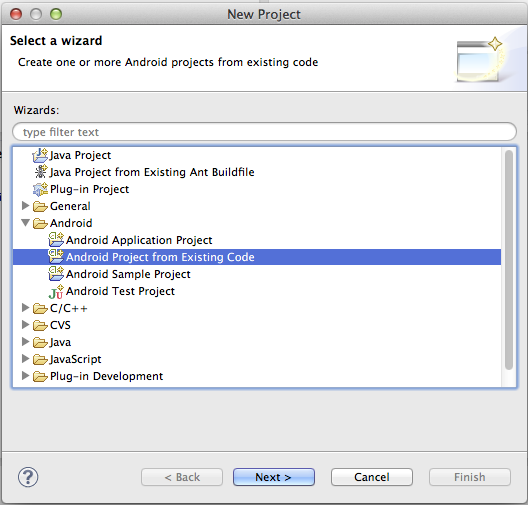
Select the directory you used for
<project_folder_path>Click Finish.
4A. Deploy to Emulator
- Right click the project and go to Run As > Android Application
- Eclipse will ask you to select an appropriate AVD. If there isn't one, then you'll need to create it.
Note: For a faster experience, use an Intel-based emulator image:
- Open the Android SDK Manager

- Install one or more
Intel x86 AtomSystem Images as well as theIntel Hardware Accelerated Execution Manager(under Extras). - Run the Intel installer, which has been downloaded to:
extras/intel/Hardware_Accelerated_Execution_Managerwithin your Android SDK - Create a new AVD with the Target set to an Intel image.
- When starting the emulator, ensure there are no error messages about the HAX module failing to load.
4B. Deploy to Device
- Make sure USB debugging is enabled on your device and plug it into your system. (Settings > Applications > Development)
- Right click the project and go to Run As > Android Application
Sources & archive notes
Recovered repository material is attributed to its original authors and distributed with its source license. Changes: FreeSoft layout, archive context, navigation, link and image locations. Apache License 2.0 · Notices and provenance. Editorial material is labeled separately.